
 ZeckRV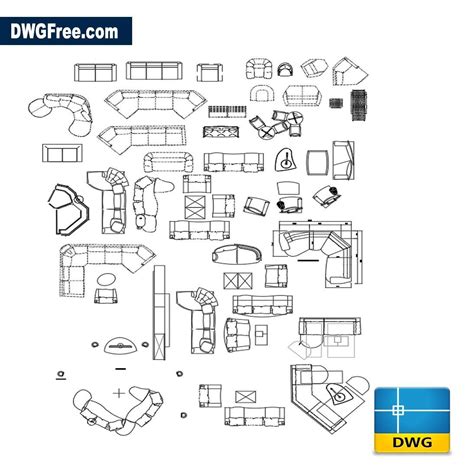
INTERIORDECOR.BIZ.ID – Living room furniture AutoCAD blocks are essential digital assets for interior designers and architects. They provide pre-drawn, standardized representations of furniture pieces, drastically streamlining the design process. Using these blocks allows professionals to efficiently lay out and visualize living spaces with accuracy and detail.
What Are AutoCAD Blocks?
AutoCAD blocks are collections of objects (lines, arcs, text) combined into a single named entity. These entities can be inserted repeatedly into a drawing, acting as a single object. They significantly reduce file size and ensure consistency across multiple instances of the same item.
The Value of Living Room Furniture Blocks
Utilizing specific blocks for living room furniture offers numerous advantages for any design project. Designers can quickly experiment with different layouts and furniture arrangements, saving valuable time and effort. This efficiency allows for more iterations and better client presentations, ensuring a well-thought-out design.
These blocks also enhance design accuracy by providing precise dimensions and representations of actual furniture. Such precision helps avoid errors in space planning and material estimation. Furthermore, they facilitate a consistent visual language throughout the project, making blueprints clear and professional.
Types of Living Room Furniture Blocks
A wide variety of living room furniture blocks are available, catering to every design need. Common types include sofas, armchairs, coffee tables, end tables, and entertainment units. You can also find blocks for decorative elements like lamps, rugs, and shelving.
These blocks come in both 2D and 3D formats, offering different levels of detail and visualization capabilities. 2D blocks are excellent for floor plans and elevations, while 3D blocks provide realistic perspectives for rendering and virtual walkthroughs. Choosing the right format depends on the specific project requirements and desired output.
Finding and Using AutoCAD Furniture Blocks
Many resources exist for acquiring living room furniture AutoCAD blocks, both free and paid. Online CAD libraries and manufacturers’ websites are primary sources, often providing extensive collections. Simply search for “free AutoCAD living room furniture blocks” or specific item names to begin your collection.
Once downloaded, inserting blocks into your AutoCAD drawing is straightforward. Use the “INSERT” command and browse to your downloaded file, then specify the insertion point and scale. Remember to organize your downloaded blocks into categorized folders for easy access and future use.
Best Practices for Efficient Design
To maximize the benefits of AutoCAD furniture blocks, adopting best practices is crucial. Always check the scale of downloaded blocks to ensure they match your drawing’s units. Customizing blocks, such as changing colors or materials, can further enhance their utility and fit your design aesthetic.
Maintain a well-organized library of your most frequently used blocks to streamline your workflow. This approach prevents redundant searches and ensures a consistent design language across all your projects. By effectively managing and utilizing these blocks, designers can elevate their living room designs significantly.
Frequently Asked Questions (FAQ)
What are AutoCAD blocks?
AutoCAD blocks are reusable collections of drawing objects (like lines and arcs) saved as a single entity. They streamline design by allowing repeated insertion of standard components like furniture, saving time and reducing file size.
Where can I find free living room furniture AutoCAD blocks?
Free blocks can be found on various online CAD libraries, architecture and interior design forums, and some furniture manufacturers’ websites. A quick search for “free living room furniture AutoCAD blocks” will yield many resources.
How do I insert a block into my AutoCAD drawing?
To insert a block, use the “INSERT” command (or type `I` and press Enter) in AutoCAD. Then, browse to the block file you want to use, specify your insertion point, scale, and rotation.
Can I customize downloaded blocks?
Yes, downloaded blocks can often be customized. You can edit blocks to change their properties like color, layer, or even modify their geometry after inserting them or by opening the block editor.
Are 2D or 3D blocks better for living room design?
Both 2D and 3D blocks serve different purposes. 2D blocks are ideal for precise floor plans and elevations, offering clarity for spatial planning. 3D blocks provide realistic visual representations for renderings and client presentations, giving a better sense of volume and aesthetics. The “better” option depends on the specific phase and goal of your design project.
Written by: Emily Taylor